Salesforce
Create a secure Salesforce connection and verify ingestion end to end.
Embrasure connects through an External Client App that you create inside your Salesforce org. Embrasure never asks for or stores a Salesforce password or security token.
Recommended production setup
Use a dedicated Salesforce integration user, one permission set with only the access Embrasure needs, and a local External Client App restricted to Admin approved users are pre-authorized.
Before you start
Plan for about 15 minutes. You need:
| Person | What they do |
|---|---|
| Salesforce administrator | Creates the permission set and External Client App, then assigns the permission set to the integration user. |
| Salesforce integration user | Signs in during OAuth. Embrasure can read only the records this Salesforce user can access. |
| Embrasure workspace administrator | Enters the consumer key and secret, completes OAuth, selects objects, and starts the first sync. |
One person can perform all three roles in a test org. In production, use a dedicated integration user so an employee password reset, deactivation, or job change cannot interrupt ingestion.
Create the permission set
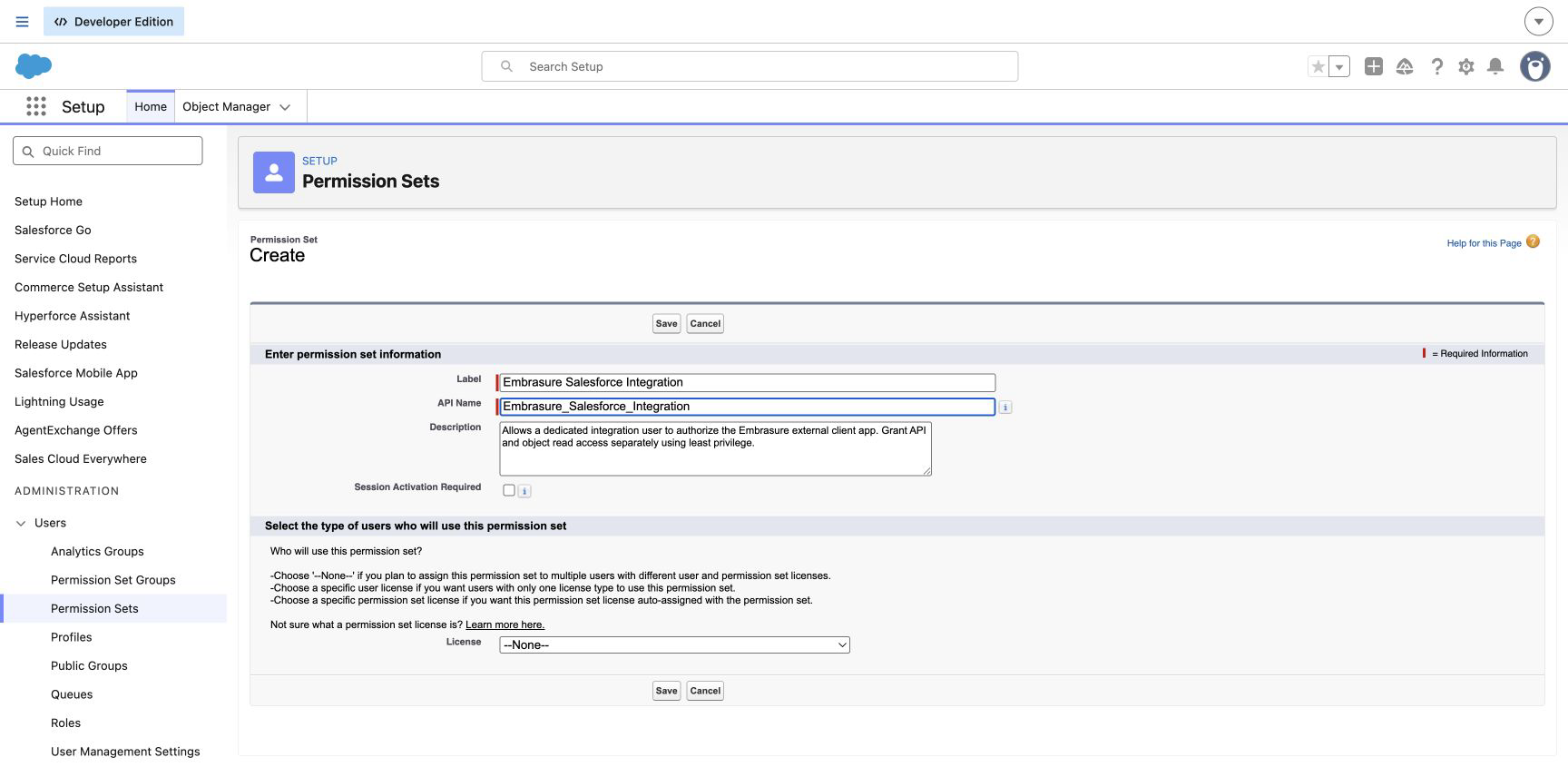
In Salesforce, open Setup and enter Permission Sets in Quick Find. Select Permission Sets, then New.
Enter:
- Label:
Embrasure Salesforce Integration - API Name:
Embrasure_Salesforce_Integration - License:
--None--
Leave Session Activation Required off. The description is optional. Select Save.
Grant API and read access
On the new permission set:
- Open System Permissions, select Edit, enable API Enabled, and save.
- Open Object Settings. For every object you plan to sync, enable Read and grant read access to the fields Embrasure should ingest.
- Enable View All Records for an object only when the integration must read every record despite Salesforce sharing rules.
- Select Manage Assignments → Add Assignments, choose the dedicated integration user, and select Assign.
Start with one object such as Account. Add more object and field access only when you are ready to ingest it. Salesforce permissions are additive, so the user's profile and other permission sets can also affect what Embrasure sees.
Create the External Client App
In Setup, enter App Manager in Quick Find, open App Manager, and select New External Client App. Salesforce's create a local External Client App guide covers the same screen.
Enter these values:
| Setting | Value |
|---|---|
| External Client App Name | Embrasure Warehouse Ingestion |
| Distribution State | Local |
| Enable OAuth | On |
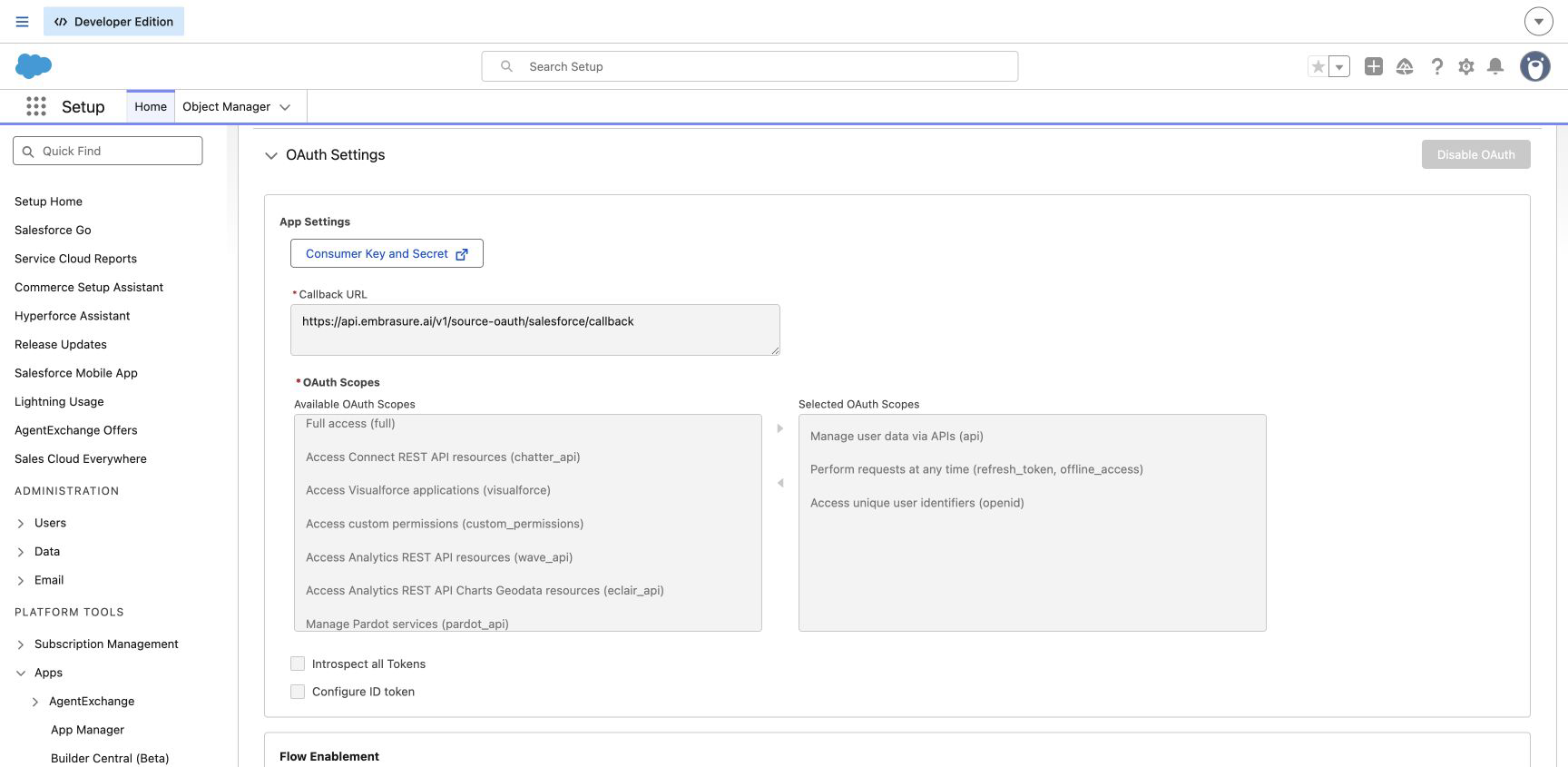
| Callback URL | https://api.embrasure.ai/v1/source-oauth/salesforce/callback |
Add only these OAuth scopes:
- Manage user data via APIs (
api) - Perform requests at any time (
refresh_token,offline_access) - Access unique user identifiers (
openid)
Then turn on:
- Require Secret for Web Server Flow
- Require Secret for Refresh Token Flow
- Require Proof Key for Code Exchange (PKCE)
- Enable Refresh Token Rotation
Do not add Full access. These three scopes are enough for API reads, token refresh, and account verification. Salesforce recommends refresh-token rotation as a security best practice. See Salesforce's OAuth settings reference.
Save the app. Salesforce can take a few minutes to activate it.
Restrict the app to approved users
Complete this step in this order so you do not lock out the integration user:
- Confirm Embrasure Salesforce Integration is already assigned to the integration user.
- In Setup, enter
External Client Apps Managerin Quick Find, then open it. - Find Embrasure Warehouse Ingestion and select Edit Policies.
- Set Permitted Users to Admin approved users are pre-authorized.
- Add Embrasure Salesforce Integration under Permission Sets.
- Select Save.
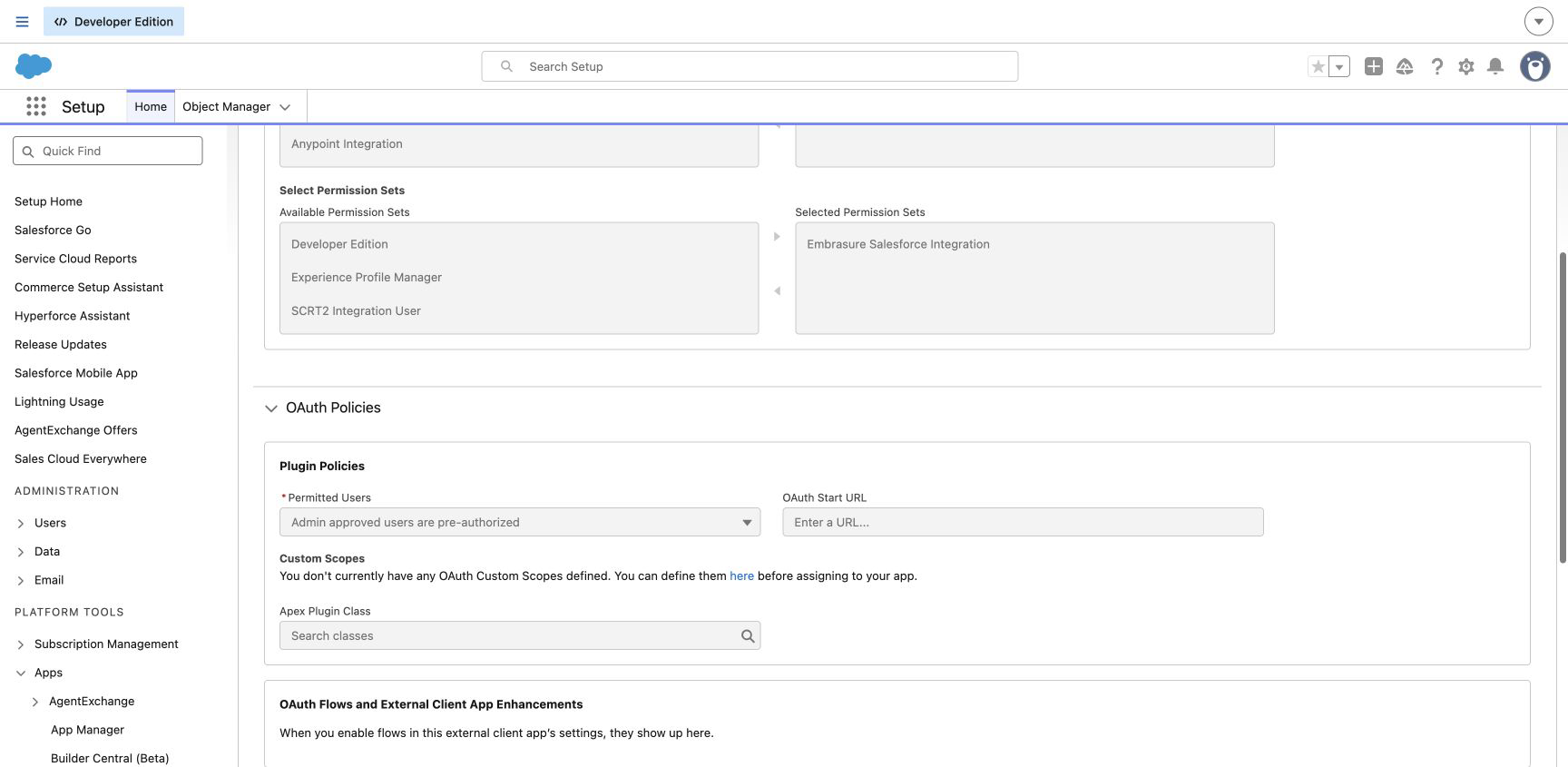
Only Salesforce users assigned the approved permission set can connect the app, and they bypass the Allow or Deny screen. Salesforce documents the behavior and safe ordering in Preauthorize User App Access.
Users with Salesforce's Use Any API Client permission can bypass this restriction. Review that permission before production rollout.
Reconnect an existing connection
Changing an existing app from self-authorization to admin preauthorization can revoke its current OAuth tokens, even when you assign the permission set first. After saving this policy, reconnect Salesforce in Embrasure once before running the verification syncs.
Copy the consumer credentials
In the External Client App's Settings tab, expand OAuth Settings and select Consumer Key and Secret. Salesforce can require an identity-verification step before showing them.
Copy:
- Consumer Key, which Embrasure labels Consumer key (client ID)
- Consumer Secret, which Embrasure labels Consumer secret (client secret)
Treat the consumer secret like a password. Do not send it through email or chat. Embrasure encrypts it at rest.
Connect Salesforce in Embrasure
In Embrasure:
- Open Warehouse → Ingestion. Select Connect warehouse source for the first source, or New sync if the workspace already has ingestion syncs.
- Choose Salesforce and select Production or Sandbox.
- Paste the consumer key and consumer secret.
- Select Continue to Salesforce.
- Sign in as the dedicated integration user. With admin preauthorization configured, Salesforce returns you to Embrasure without an Allow or Deny screen.
Embrasure verifies API access and stores the returned OAuth credentials encrypted at rest.
Verify the first ingestion
Do not call onboarding complete until all of these checks pass:
- Salesforce returns you to the ingestion page with no authorization warning.
- Catalog discovery completes and lists the object you granted, such as Account.
- Create a batch sync for that object. Keep the Salesforce
Idas the primary key and useSystemModstampas the preferred incremental cursor when available. - Select Sync now and wait for Succeeded.
- Confirm the destination table contains the expected Salesforce IDs and row count.
- Run the sync again. With no Salesforce changes, it should succeed with zero changed rows.
After this smoke test, add the remaining objects and schedule the connection.
Production checklist
- A dedicated integration user has Embrasure Salesforce Integration assigned
- The permission set grants API Enabled and read access only to approved objects and fields
- The app has only
openid,api, andrefresh_token/offline_accessscopes - Web server secret, refresh token secret, PKCE, and refresh-token rotation are enabled
- Admin approved users are pre-authorized is selected
- Use Any API Client reviewed and limited in Salesforce
- Every synced object has a stable
Idand an incremental cursor - The initial sync and a second no-change sync both succeed
Troubleshooting
| Symptom | What to check |
|---|---|
invalid_scope | Confirm all three scopes are selected, including openid. |
| User is not approved to access the app | Assign Embrasure Salesforce Integration to that exact Salesforce user and add the permission set to the External Client App policy. |
OAuth callback or redirect_uri mismatch | Copy the callback URL exactly, including https and the full /v1/source-oauth/salesforce/callback path. |
| Connection succeeds but an object is missing | Grant object Read plus field-level read access, then run catalog discovery again. |
| Some records are missing | Check Salesforce sharing rules. Grant View All Records only if the integration is expected to bypass them. |
| A working connection fails immediately after you change Permitted Users | Reconnect Salesforce in Embrasure once. Salesforce can revoke existing OAuth tokens when this policy changes. |
| Authorization expires or is revoked | Reconnect Salesforce. Also confirm the integration user is active and still has the permission set. |
Salesforce returns 429, REQUEST_LIMIT_EXCEEDED, or 5xx errors | Embrasure retries transient failures with bounded backoff. If failures persist, check the org's REST API limits and lower the sync frequency. |
What Embrasure stores
Embrasure stores the consumer key, encrypted consumer secret, access token, rotating refresh token, Salesforce instance URL, and token expiry metadata. It does not store a Salesforce username, password, or security token.
Embrasure discovers queryable objects, reads them in bounded REST batches, and resumes from the saved cursor. Deleted records become tombstones when Salesforce returns them through queryAll.