Stripe
Connect Stripe with one read-only restricted key, sync nine commerce resources, and verify the first incremental run.
Connect Stripe in about five minutes. Embrasure needs one dedicated restricted API key with specific Read permissions. It does not need OAuth, a Stripe app, a webhook, or any Write permission.
Before you start
You need:
- Embrasure workspace administrator access
- Stripe access that can create restricted API keys
- A choice between Stripe live mode and a sandbox
Stripe keeps live and sandbox objects separate. Use an rk_live_… key for live data or an rk_test_… key for sandbox data. Embrasure rejects unrestricted sk_… keys.
Connect Stripe
Open the Stripe source
In Embrasure, open Warehouse → Ingestion. Select Connect warehouse source for the first source, or New sync if the workspace already has ingestion syncs. Find Stripe under Add a warehouse source.
Create a restricted key
Open Stripe API keys, then select Create restricted key. Name the key Embrasure Warehouse ingestion so its purpose is clear. If Stripe redirects the dashboard link, open Developers → API keys manually.
Stripe documents restricted-key creation and live-key display in its API keys guide. Use a dedicated key so you can rotate or revoke Embrasure without affecting another integration.
Grant only the required Read permissions
In Stripe's Permissions column, set these resources to Read:
| Stripe resource | Permission |
|---|---|
| Accounts | Read |
| Events | Read |
| Charges and Refunds | Read |
| Customers | Read |
| Payment Intents | Read |
| Payouts | Read |
| Products | Read |
| Invoices | Read |
| Prices | Read |
| Subscriptions | Read |
Leave unlisted Permissions options at None, grant no Write permission, and keep every Connect permissions option at None. The Accounts row under the Connect section has no separate Connect permission; set only its Permissions value to Read.
For Accounts, search for Accounts, then choose Read on the row named Accounts under the Connect section. Do not choose Accounts v2 or Connect Accounts.
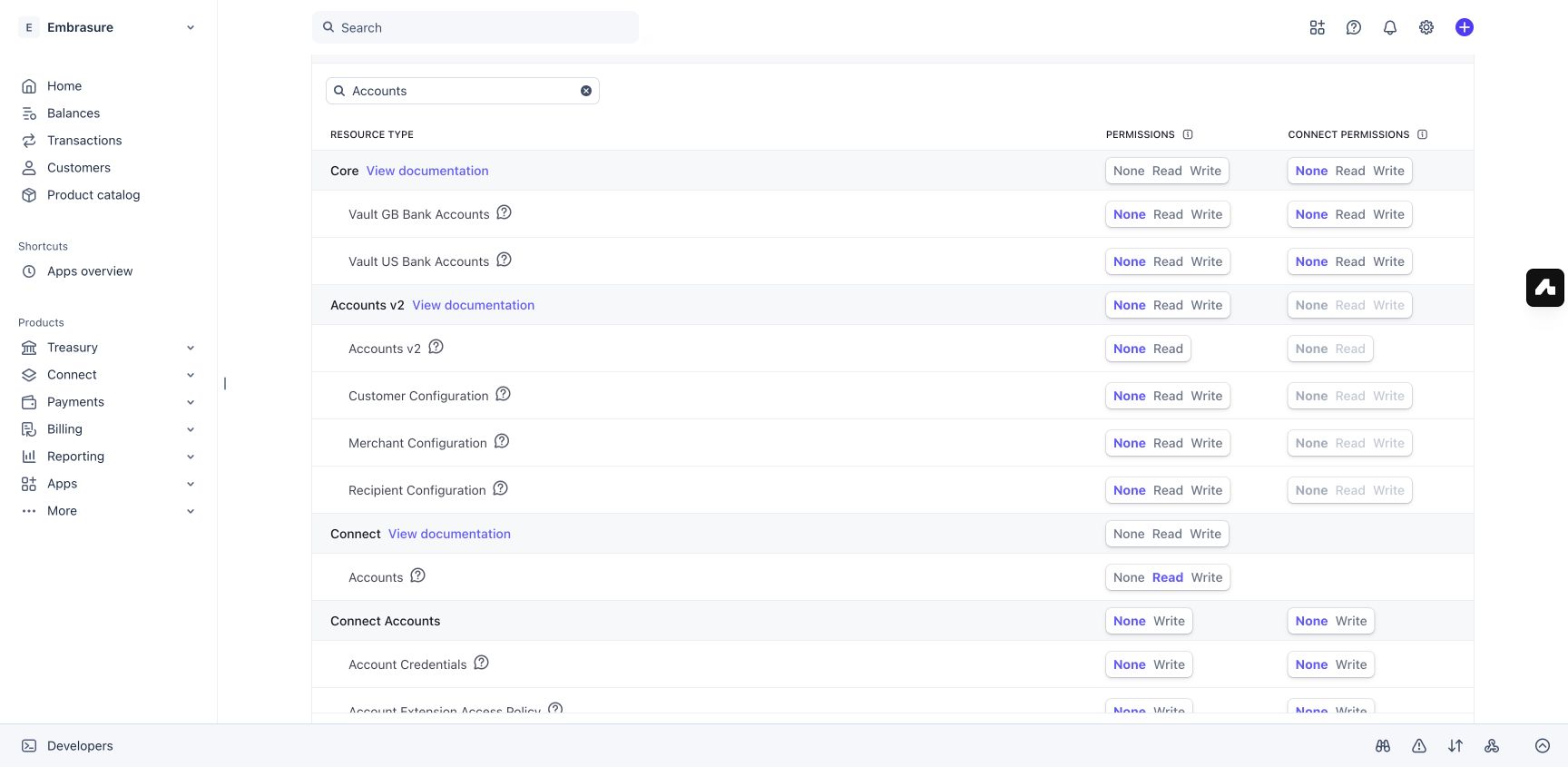
Stripe recommends restricted keys and least-privilege access in its key security guidance.
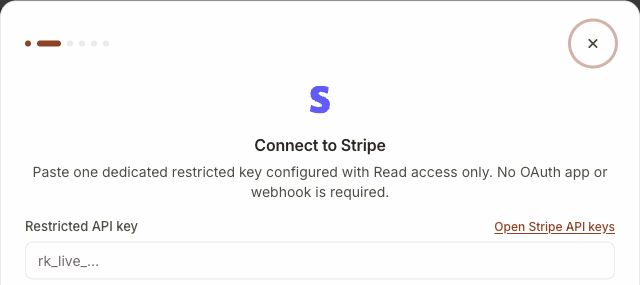
Paste the key directly into Embrasure
Select Create key in Stripe and complete Stripe's verification. Stripe displays a live restricted key only once; sandbox keys can be revealed again. Copy the key directly into Embrasure's Restricted API key field, then select Connect.
Do not put the key in chat, a ticket, a screenshot, source code, or a shell command. Embrasure encrypts it when the connection is saved.
Discover the Stripe schema
A successful check shows the Stripe account ID and one schema named stripe. Keep that schema selected and choose Sync metadata. Embrasure should discover nine tables.
Validate and start the sync
Choose a destination database, include all nine Stripe tables, and select Validate selected tables. Continue when validation reports 9 ready, 0 blocked, then select Start batch sync.
Use a new destination database if another ingestion sync already owns the same destination table names.
Verify the result
The ingestion page should show Succeeded, 9 tables, and Synced on each selected table.
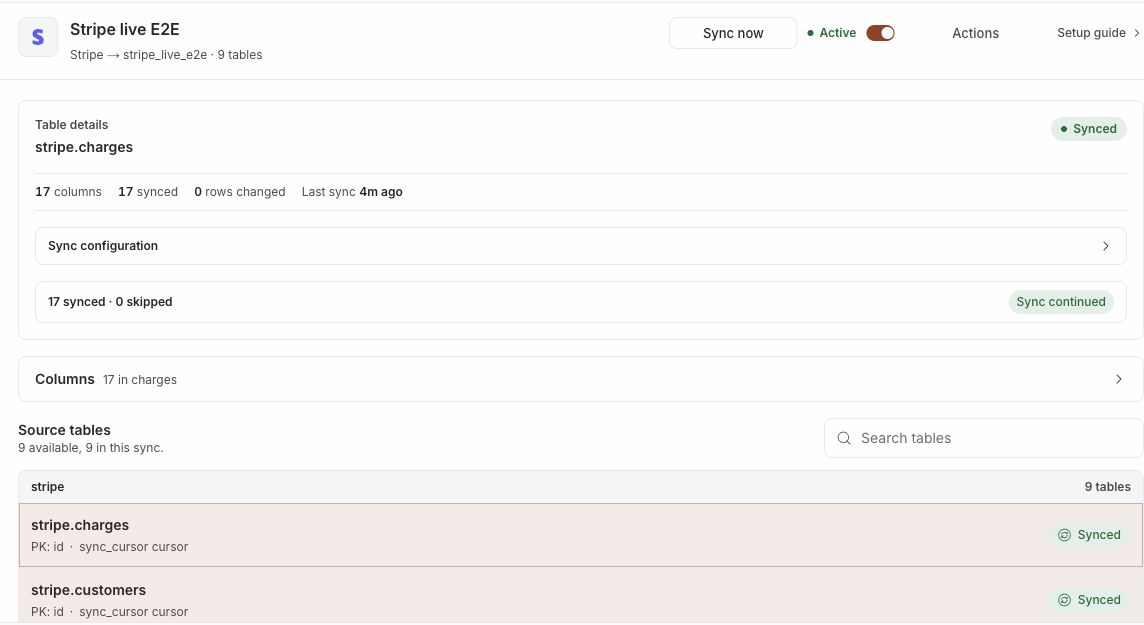
In the warehouse SQL tab, replace your_database and run:
SELECT count(*) AS customer_count
FROM your_database.stripe.customers;
A new or empty Stripe account can correctly return 0. Run Sync now once more and confirm the second run succeeds. Later runs use Stripe Events to find changes, refetch the current resource, and write a complete row. Deleted resources are retained as tombstones with _embrasure_deleted = true.
Tables
| Area | Tables |
|---|---|
| Customers and subscriptions | customers, subscriptions, invoices |
| Catalog | products, prices |
| Payments | payment_intents, charges, refunds, payouts |
How incremental sync works
The first run lists the selected Stripe resources. Later runs read Stripe's Events API and use each event's resource ID to fetch the current Stripe object before writing it. Embrasure does not treat the historical Event snapshot as the source row.
Stripe exposes events for 30 days, but Embrasure keeps a safety margin for overlap. Keep the sync active and do not let 28 days pass without a successful sync. If that window is missed, use Actions → Full resync. Confirming a full resync also resumes automatic syncs if the connection is paused. No webhook is required.
Troubleshooting
| Symptom | What to do |
|---|---|
| Embrasure rejects the key | Use a restricted key beginning with rk_live_ or rk_test_. Do not use sk_, pk_, or a webhook signing secret. |
GET /v1/account is denied | Grant Accounts → Read on the Accounts row under Stripe's Connect section. Do not use Accounts v2. |
| A resource request is denied | Grant Read for the matching resource in the permission table above. Leave Write off. |
| The connection succeeds but no rows appear | Confirm the key mode matches the data. Sandbox keys cannot read live objects, and live keys cannot read sandbox objects. An empty account legitimately produces empty tables. |
| The sync reports a stale Stripe checkpoint | No sync completed within the safe 28-day window. Open the sync's Actions menu and choose Full resync to replace destination rows from a new complete source snapshot. If paused, confirming also resumes automatic syncs. |
| Start sync says a destination table is already mapped | Choose another warehouse database or remove the older ingestion sync that owns those destination names. |
| No tables appear immediately after connection | Wait a few seconds and refresh the ingestion page. The source is saved before catalog discovery finishes. |
Security boundary
Embrasure stores the restricted key with the connector's encrypted credentials. The connector can identify the Stripe account, list the nine supported resources, read recent Events, and retrieve the current version of a changed resource. It cannot create charges, issue refunds, edit customers, or modify Stripe configuration when the permission list above is followed.
Rotate or expire the dedicated key from Stripe's API keys page whenever you want to revoke access.